ExportKit
Solution
A Canva alternative for app store screenshots
Canva is great for a lot of things. Making a Play Store or App Store screenshot set isn't really one of them. Here's the Canva alternative I use, step by step, and when Figma or Screenhance makes more sense than either.
What's in this article
- Why Canva gets fiddly for store screenshots
- What a good Canva alternative needs
- My Canva alternative, step by step
- The words matter more than the tool
- What about App Store screenshots?
- Canva vs Figma vs Screenhance vs ExportKit, quickly
- When Canva is still the right call
- Before you upload, whichever tool you use
- Frequently asked questions
The real problem with Canva here is that it doesn't know what Google Play or the App Store accept. A good Canva alternative does: you pick the device, drop in your screens, and the export is already the right size.
Why Canva gets fiddly for store screenshots
I'm not knocking Canva. I use it for social posts. But for a store listing, you end up doing the store's job by hand:
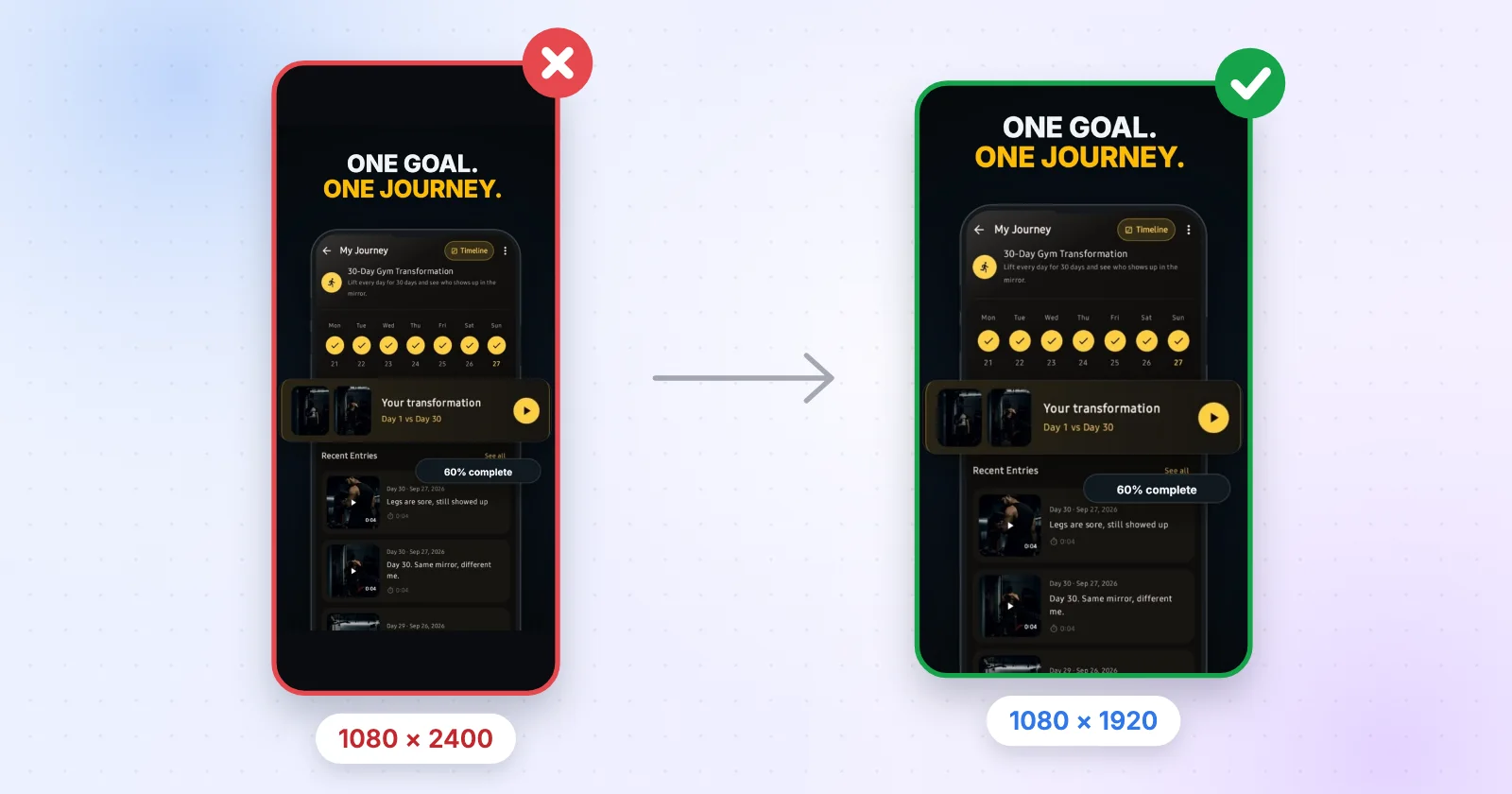
- You type the size in yourself, 1080 × 1920 for Play and 1290 × 2796 for iPhone, for every design.
- There's no device frame that fits your real screens, so you line one up by hand on every slide.
- A PNG with a transparent background slips out easily, and Google Play rejects it.
- Turning the Android set into the iPhone set means a resize, and resizing a design is a Pro feature.
None of that is hard. It's just slow, and it all comes back the moment you change one screen in your app.
What a good Canva alternative needs
For store screenshots specifically, this is my list. Anything that misses one of these is just Canva with extra steps:
- It knows each store's sizes and only exports valid ones.
- It frames your real app screens in a device for you.
- It builds the whole carousel at once, not one image at a time.
- It exports without a watermark.
- Ideally, it makes the icon and the feature graphic in the same place.
My Canva alternative, step by step
- Grab your screens
From the emulator or your phone, at any resolution. Raw 20:9 captures are fine here because they go inside a frame, not straight to the store.
- Open the editor and pick a set
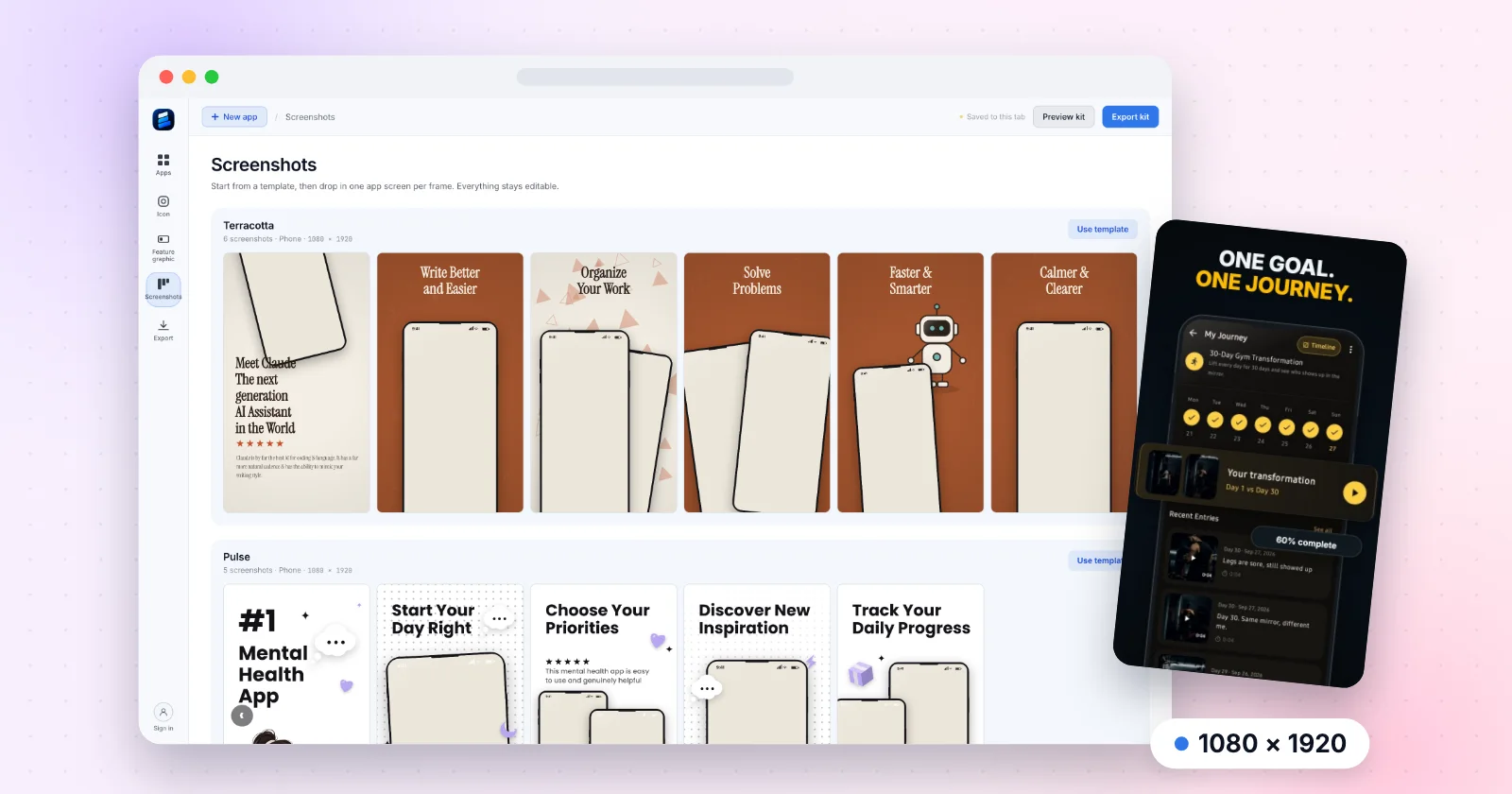
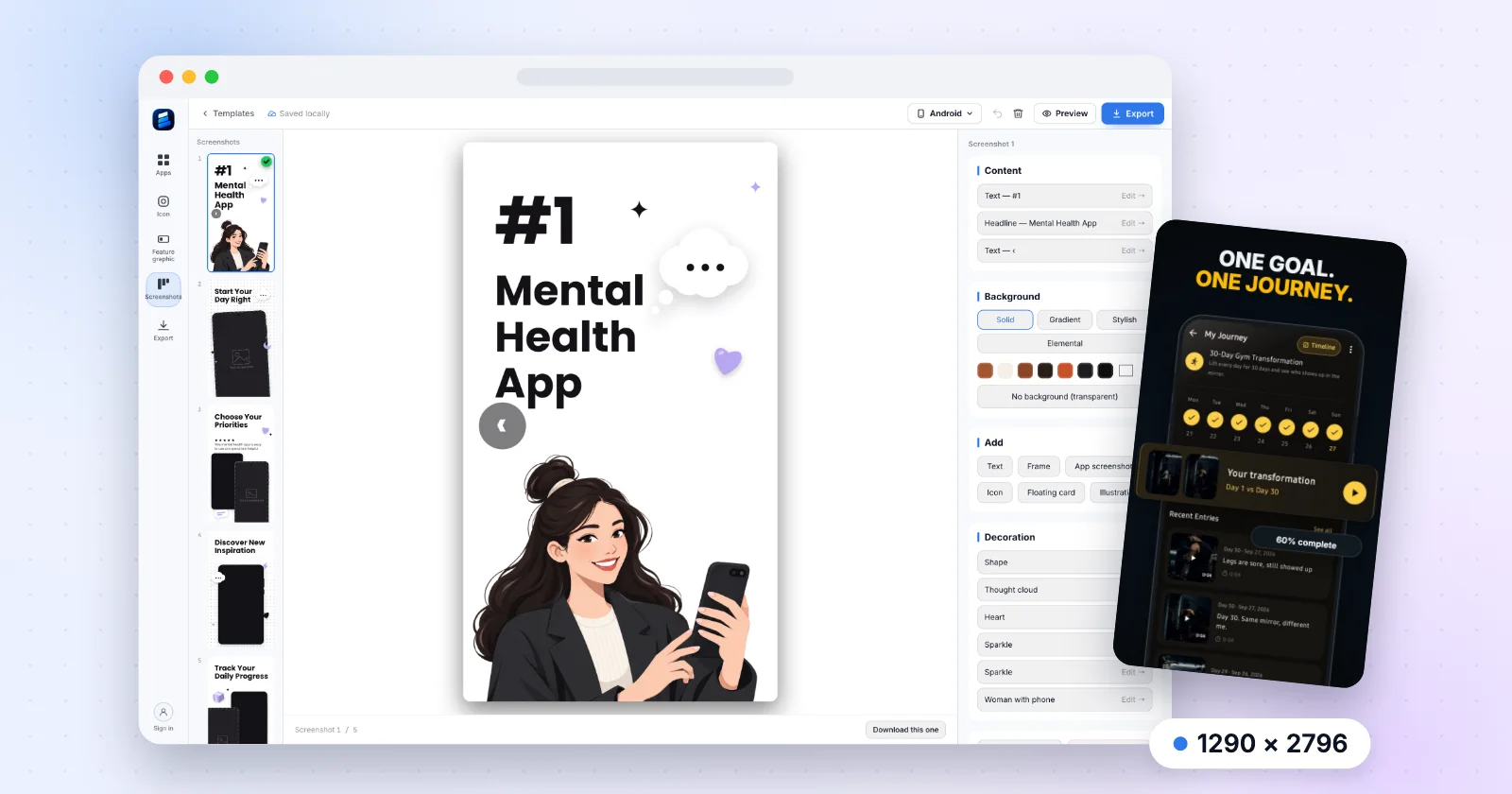
ExportKit's screenshot editor opens on the template gallery. Terracotta, Pulse and Nova are free.
- Pick the device
Android exports at 1080 × 1920, iPhone at 1290 × 2796 and tablet at 1600 × 2560. You choose it once at the top, not per slide.
- Drop in a screen and write one line per frame
Lead with what the user gets, not the feature name. You write these yourself; there's no copy generation in ExportKit.
- Export
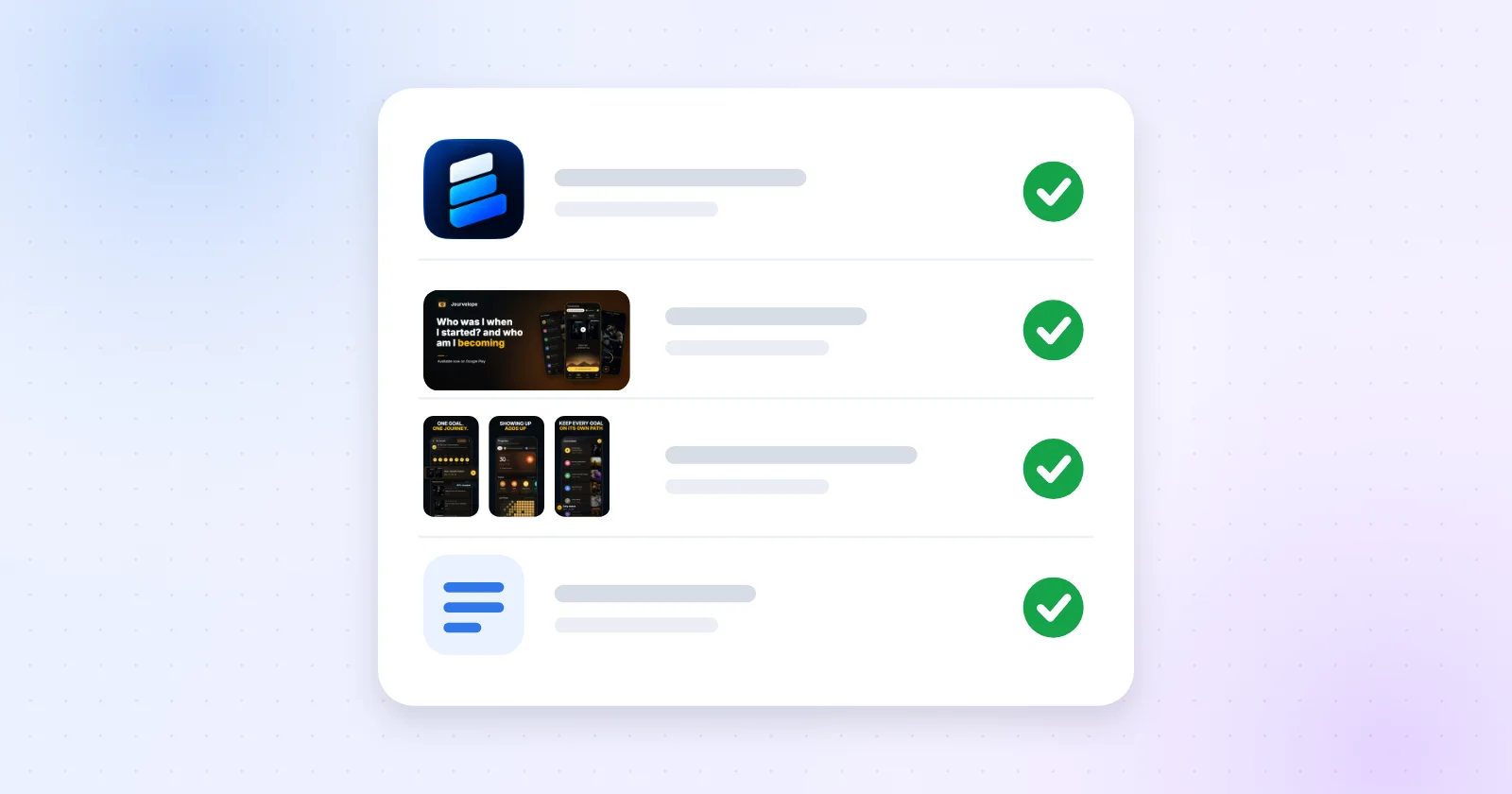
Every screenshot as a PNG, or the whole kit as a zip with the icon and the feature graphic.

The feature graphic works the same way, and it's locked to the 1024 × 500 Play needs, which is another thing you'd otherwise set up by hand in Canva.

The words matter more than the tool
Whatever you make the screenshots in, the line on each frame does most of the work. People flick through a carousel in a couple of seconds, so each frame gets one idea. "Track every workout in one tap" beats "Advanced workout tracking features". Say what you get, not what the feature is called.
I keep it to five or six words per headline and put the strongest frame first, because it's the one people see first, and often the only one. If a frame needs a paragraph to make sense, it's two frames.
What about App Store screenshots?
Same steps, different device. Switch the picker to iPhone and the set exports at 1290 × 2796, a size App Store Connect accepts for iPhone. In Canva you'd make a second design at that size and move everything across by hand, which is the bit that eats an evening. One catch: Apple also requires at least one screenshot at 1179 × 2556 or 1206 × 2622, and ExportKit doesn't export that size yet.
Canva vs Figma vs Screenhance vs ExportKit, quickly
| Tool | Knows store sizes | Free exports | Watermark on free |
|---|---|---|---|
| Canva | No, you type them in | Yes | Not on free elements |
| Figma | No, you set the frames | Yes | No |
| Screenhance | Yes | 3 a month at 1x | Yes |
| ExportKit | Yes | Unlimited | No |
Prices and the full breakdown are in my comparison of the best Play Store screenshot generator options.
When Canva is still the right call
If you need one quick screenshot, your brand kit is already in Canva, and you're making the Instagram post at the same time, stay in Canva. It's not worth switching tools for two images. If you design your app in Figma, a Figma community template keeps your screenshots in sync with your real components. And if your launch needs mockup scenes and a demo video, Screenhance does all of that in one place.
ExportKit is the Canva alternative for the boring middle: a full, correctly sized set for both stores, free, without a watermark. It has fewer templates than the paid tools and no video, and I'd rather tell you that now than after you've signed up.
Before you upload, whichever tool you use
Check the files against the Google Play screenshot sizes and the App Store screenshot sizes. If Play bounces one anyway, here's why a Play Store screenshot gets rejected and the quick fix.
Make the set without the resizing
Pick a template set, drop in your app screens and download every file the listing needs, in your browser, with nothing uploaded.
Open the screenshot editorFree · No watermark · Android, iPhone and tablet
Frequently asked questions
What is the best Canva alternative for app store screenshots?
A tool that already knows the store sizes. ExportKit exports Android at 1080 × 1920, iPhone at 1290 × 2796 and tablet at 1600 × 2560 for free with no watermark. Screenhance does more, including mockups and video, but its free plan is watermarked and capped at three exports a month.
Is there a free Canva alternative for Play Store screenshots?
Yes. ExportKit is free to use with three template sets, no watermark and no cap on exports, and you can start without an account.
Can I still use Canva for app store screenshots?
You can. Set a custom size of 1080 × 1920 for Play, place your screens by hand and export with a solid background, because Google Play rejects transparent PNGs.
Is Figma better than Canva for app store screenshots?
If you design your app in Figma, yes: your screenshots can use your real components. Neither tool knows the store sizes, so you set the frames yourself either way.